

为KindEditor添加Markdown转HTML功能
订阅
KindEditor 是经典富文本编辑器,常用于老项目;为适配 Markdown 普及趋势,需将 Markdown 转 HTML 并集成至该编辑器。
本文包含AI辅助创作内容

Kindeditor 中添加 Markdown 转 HTML 功能
轻量级方案,让传统富文本编辑器支持 Markdown
背景
KindEditor 是一款经典的富文本编辑器,许多老项目仍在使用。随着 Markdown 的普及,项目常需要将 Markdown 内容转换为 HTML 并集成到现有编辑器中。
若直接替换为 Markdown 编辑器,改动量大,且大多数方案基于 Vue、React 等现代框架,对传统 HTML 页面而言过于臃肿。marked.js 是一个轻量级、易于集成的替代方案。
实现方案
1 添加自定义工具按钮
定义插件
KindEditor.plugin('markdown', function (K) {
    var editor = this;
    editor.clickToolbar('markdown', function () {
        // 按钮点击逻辑
    });
});
KindEditor.lang({ markdown: 'Markdown' });
初始化编辑器
KindEditor.ready(function (K) {
    editor = K.create('#el', {
        plugins: ['markdown'],
        items: ['source', 'markdown'] // 按需添加其他功能
    });
});
自定义按钮样式
.ke-icon-markdown {
    background-image: url("data:image/svg+xml,...") !important;
    background-size: contain;
    width: 16px;
    height: 16px;
    display: inline-block;
}
效果如下:
2 引入 marked.js 并实现转换
在页面中引入 marked.js:
<script src="https://cdn.jsdelivr.net/npm/marked/lib/marked.umd.js"></script>完善插件逻辑:
KindEditor.plugin('markdown', function (K) {
    var editor = this;
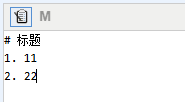
    editor.clickToolbar('markdown', function () {
        let html = editor.html();
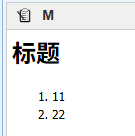
        html = marked.parse(html);
        editor.html('<div class="markdown-body">' + html + '</div>');
    });
});
3 添加样式支持
转换后的 HTML 需要配合 CSS 才能正确渲染,推荐使用 GitHub 风格样式:
<link rel="stylesheet" href="https://cdnjs.cloudflare.com/ajax/libs/github-markdown-css/5.5.0/github-markdown.min.css"/>也可根据项目需求自定义样式。
4 独立的 Markdown 编辑器页面
以下是一个包含实时预览、HTML 输出和复制功能的完整实现:
<!DOCTYPE html>
<html lang="zh-CN">
<head>
    <meta charset="UTF-8">
    <title>Markdown 编辑器</title>
    <script src="https://cdn.jsdelivr.net/npm/marked/lib/marked.umd.js"></script>
    <link rel="stylesheet" href="https://cdnjs.cloudflare.com/ajax/libs/github-markdown-css/5.5.0/github-markdown.min.css">
    <style>
        * { margin: 0; padding: 0; box-sizing: border-box; }
        body { font-family: -apple-system, sans-serif; background: #f5f5f5; padding: 20px; }
        .container { max-width: 1400px; margin: 0 auto; }
        header h1 { font-size: 1.5rem; color: #333; font-weight: 500; }
        .editor-section { display: grid; grid-template-columns: 1fr 1fr; gap: 1px; background: #ddd; }
        .panel { background: white; }
        .panel-header { background: #fafafa; border-bottom: 1px solid #ddd; padding: 10px 15px; font-weight: 500; font-size: 0.95rem; color: #555; display: flex; justify-content: space-between; align-items: center; }
        .panel-body { padding: 15px; height: 450px; overflow: auto; }
        #content_raw { width: 100%; height: 100%; border: 1px solid #ddd; padding: 10px; font-family: 'Courier New', monospace; font-size: 14px; line-height: 1.6; resize: none; outline: none; }
        #showcontent { height: 100%; overflow: auto; }
        .result-section .panel-body { height: 150px; }
        #result { width: 100%; height: 100%; border: 1px solid #ddd; padding: 10px; font-family: 'Courier New', monospace; font-size: 13px; resize: none; outline: none; background: #fafafa; }
        .copy-btn { background: #555; color: white; border: none; padding: 5px 12px; cursor: pointer; font-size: 0.85rem; }
        .copy-btn:hover { background: #333; }
    </style>
</head>
<body>
    <div class="container">
        <header><h1>Markdown 编辑器</h1></header>
        <div class="editor-section">
            <div class="panel">
                <div class="panel-header"><span>编辑区</span></div>
                <div class="panel-body">
                    <textarea id="content_raw" placeholder="在这里输入 Markdown 内容..."></textarea>
                </div>
            </div>
            <div class="panel">
                <div class="panel-header"><span>预览区</span></div>
                <div class="panel-body">
                    <div id="showcontent" class="markdown-body"></div>
                </div>
            </div>
        </div>
        <div class="result-section">
            <div class="panel-header">
                <span>结果区 (HTML)</span>
                <button class="copy-btn" onclick="copyResult()">复制</button>
            </div>
            <div class="panel-body">
                <textarea id="result" readonly></textarea>
            </div>
        </div>
    </div>
    <script>
        const contentRaw = document.getElementById("content_raw");
        const showContent = document.getElementById("showcontent");
        const result = document.getElementById("result");
        contentRaw.addEventListener('input', function () {
            showContent.innerHTML = marked.parse(this.value);
            result.value = showContent.innerHTML;
        });
        function copyResult() {
            result.select();
            document.execCommand('copy');
            alert('已复制');
        }
    </script>
</body>
</html>
总结
通过 marked.parse() 将 Markdown 转为 HTML,既可以赋值给 KindEditor 等传统富文本编辑器,也可以构建独立的 Markdown 编辑器页面。注意前端展示页面需引入对应的 CSS 样式文件以确保渲染效果。
阅读全文





























请先 登录后发表评论 ~